![SALONIQ_Logo-High-Res_darkbg (1) (1).png]](https://faq.saloniq.com/hs-fs/hubfs/SALONIQ_Logo-High-Res_darkbg%20(1)%20(1).png?width=141&height=79&name=SALONIQ_Logo-High-Res_darkbg%20(1)%20(1).png)
- How to add the payment link to appointment reminders, please click here
- How to set up deposits and stripe payments, please click here
- How to send an individual link to a client, please click here
- How to send a payment link from the checkout screen, please click here
- How to create a payment link for IQ Connect, please click here
How to add a payment link to your appointment reminder;
Menu > Intelligent Marketing > Automation
- Open up your appointment reminder SMS or Email
- Ensure that the "Trigger" is set to "appointment reminder"
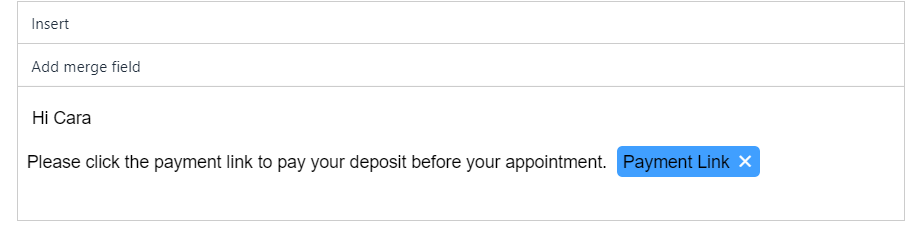
- Enter in text to advise clients to click on the payment link
- Right click and enter in the payment link merge field

See our guide in settings up deposits and stripe Deposits
How to send an individual link to a client;
- On the clients record card click on Send SMS or Send Email
- Write what you would like to say to the client
- Right click and enter in the payment link
How to use the payment link from the checkout screen
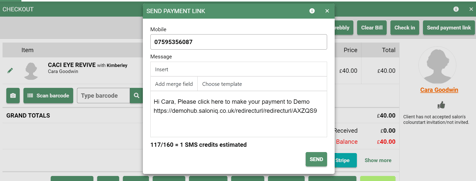
At the checkout screen, click on the payment link button at the top of the screen. You will then see the message below. The message has been pre-filled; however you can customise this message by clicking in the box.
How to add a payment link to your confirmations, this will then send to each client who books through IQ Connect
Menu > Intelligent Marketing > Automation > Custom
- Open up your confirmation SMS or Email
- Ensure that the "Trigger" is set to "appointment confirmation"
- Enter in text to advise clients to click on the payment link
- Right click and enter in the payment link merge field

The amount requested by the payment link is taken from your online bookings deposit settings that are setup like this Online Deposit Setup.
If you have any questions regarding payment links, please email help@saloniq.com or call 01892 280123 opt.1