![SALONIQ_Logo-High-Res_darkbg (1) (1).png]](https://faq.saloniq.com/hs-fs/hubfs/SALONIQ_Logo-High-Res_darkbg%20(1)%20(1).png?width=141&height=79&name=SALONIQ_Logo-High-Res_darkbg%20(1)%20(1).png)

Setting Up Team Members For Treatwell
Setting Up Services For Treatwell
How to Offer Treatwell Promotions
Activate your Treatwell Account
How to upload Treatwell Images
Set your Treatwell account to Live
Treatwell bookings within SalonIQ
What is Treatwell
Treatwell is a leading online marketplace that connects customers with hair salons, barbers, spas, and beauty clinics, making it easy to discover and book appointments anytime.
It helps businesses attract new clients by increasing their visibility to a large audience actively searching for treatments in their area supports salons in filling empty slots and bringing more clients through the door.
Treatwell Pricing
You can find Treatwell pricing and contract details here. Pricing
Enable Team Members
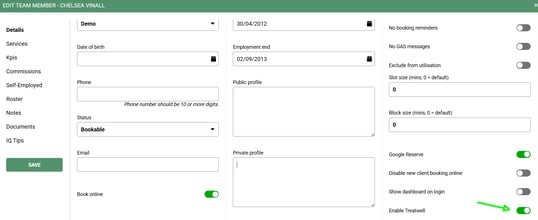
To activate your Team Members to be bookable from Treatwell. Menu > Settings > Team Members > Open Team Member > Toggle on Enable Treatwell.
You can enable a team member for Treatwell even if you don't want the team member bookable online in SalonIQ.
Enable Services For Treatwell
To enable services for Treatwell, go to Menu > Settings > Services > Open Up Service. On the left hand side click
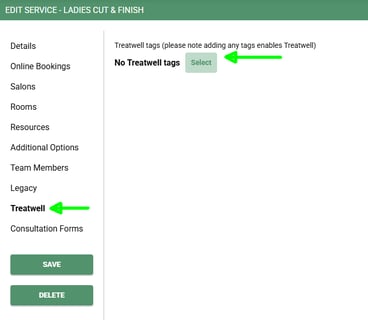
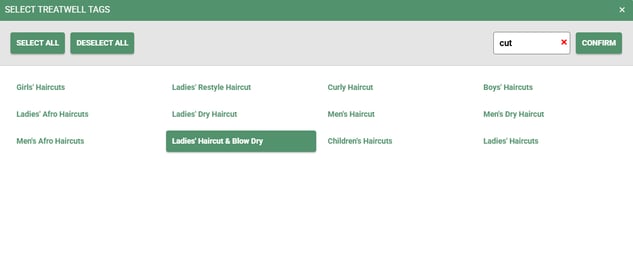
On Treatwell, tags help organise and describe your services so clients can easily find what they need. You can add more than one tag to a service – using accurate, relevant tags improves how often your service appears in client searches.
Salon Settings - Description
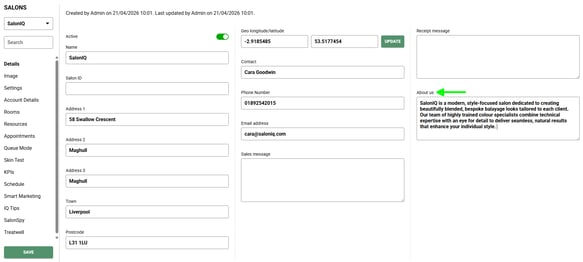
A salon description on Treatwell helps turn browsers into bookings by building trust, showcasing your brand, and improving visibility. It gives potential clients a clear sense of your vibe, whether you’re a Hair Salon, Specialist Clinic, or Beauty Salon. While highlighting what makes you stand out, such as your expertise, products, or techniques.
To add your salon description go to Menu > Settings > Salons > Details > About Us. Once you have added your description don't forget to press save.
Salon Settings - Address
Treatwell Promotions
Adding promotions on Treatwell can significantly boost bookings by making your services more appealing and competitive. Discounts, limited-time offers, or first-time client deals create a sense of urgency and give potential customers an extra incentive to choose your salon over others. Promotions also increase your visibility on the platform, as clients often filter for deals, helping you attract new clients and fill quieter periods more effectively.
To create a promotion for Treatwell go to Menu > Settings > Promotions > Add Promotion. Create your Promotion.
Promotion Name - This will appear on your SalonIQ system once a booking has been made.
Active - Once you want your promotion to appear toggle the active button to Green.
Treatwell - Toggle in green for your promotion to appear on Treatwell.
Services – Select the service from the list on the left that you want to include in the promotion.
Save.
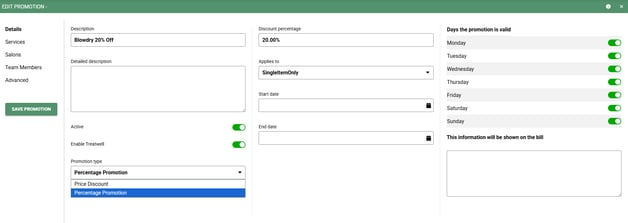

It may take a couple of minutes for your Treatwell promotion to appear on your page.
Activate Your Treatwell Account
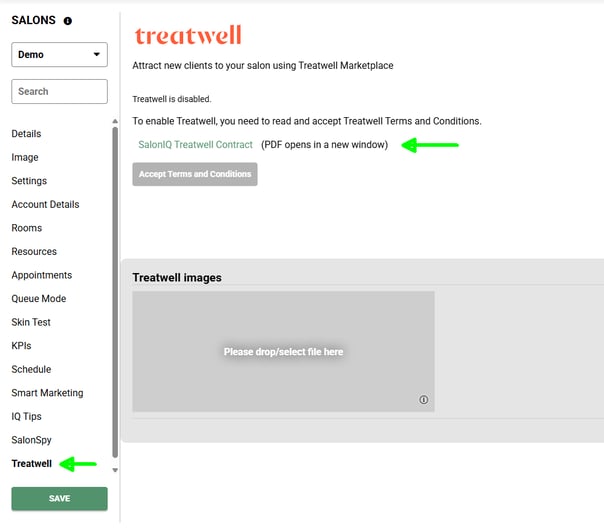
Account Set Up
Enable Slot Bookings – When this is turned on, every time slot in your diary will be offered (for example: 9:00, 9:15, 9:30). When it’s turned off, Treatwell will offer appointments based on your block sizes instead (for example: 9:00, 9:45, 10:15).

Bank Details
-
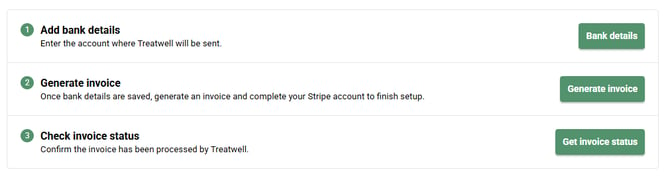
Bank Details – Click on Bank Details and enter your bank information. These details will be used to process payments for any fees from Treatwell bookings.
-
Generate Invoice – After you’ve entered your bank details, click Generate Invoice. A Stripe account link will appear; click this link and follow the steps to create your Stripe account.
- Get Invoice Status – Once you’ve completed the steps above, Get Invoice Status should display as True. This confirms that your Stripe details have been set up successfully.

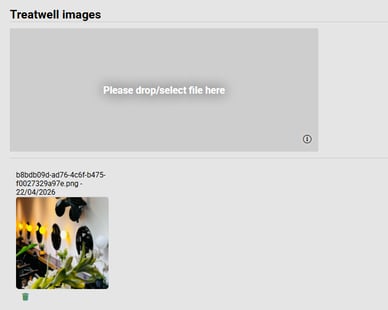
Uploading high-quality images on Treatwell helps your salon attract more clients by creating a strong first impression, building trust, and showcasing what makes your business unique. Clear photos of your space, team, and treatments make your listing look more professional and reassure potential clients about the experience they’ll receive. This not only helps you stand out from competitors but also increases the likelihood of people choosing and booking your services.
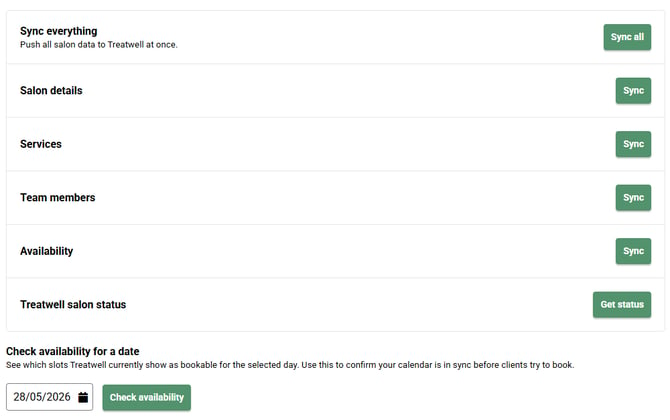
- Update Salon – Click Update Salon to sync any changes you’ve made in your salon settings.
- Update Services – Click Update Services to send your services through to your Treatwell page.
- Update Team Members – Click Update to send your team members through to Treatwell.
- Update Availability – Click Update to send your availability to Treatwell. Your Treatwell account will use the rosters you’ve set in SalonIQ, in the same way it does for online booking.
- Update All - This will update all of the Services, Team Members and Rosters
- Get Treatwell Status – Click here to check the status of your Treatwell account. Your Treatwell page link should then appear. Please note, it can take up to 5 minutes for your salon to appear on Treatwell.
-
Check Availability – Click this to view a link showing all available appointments being sent to Treatwell. Your availability is kept up to date on Treatwell automatically.
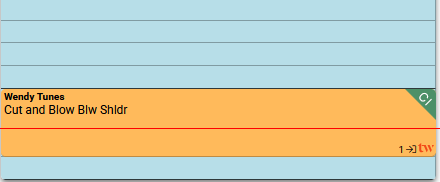
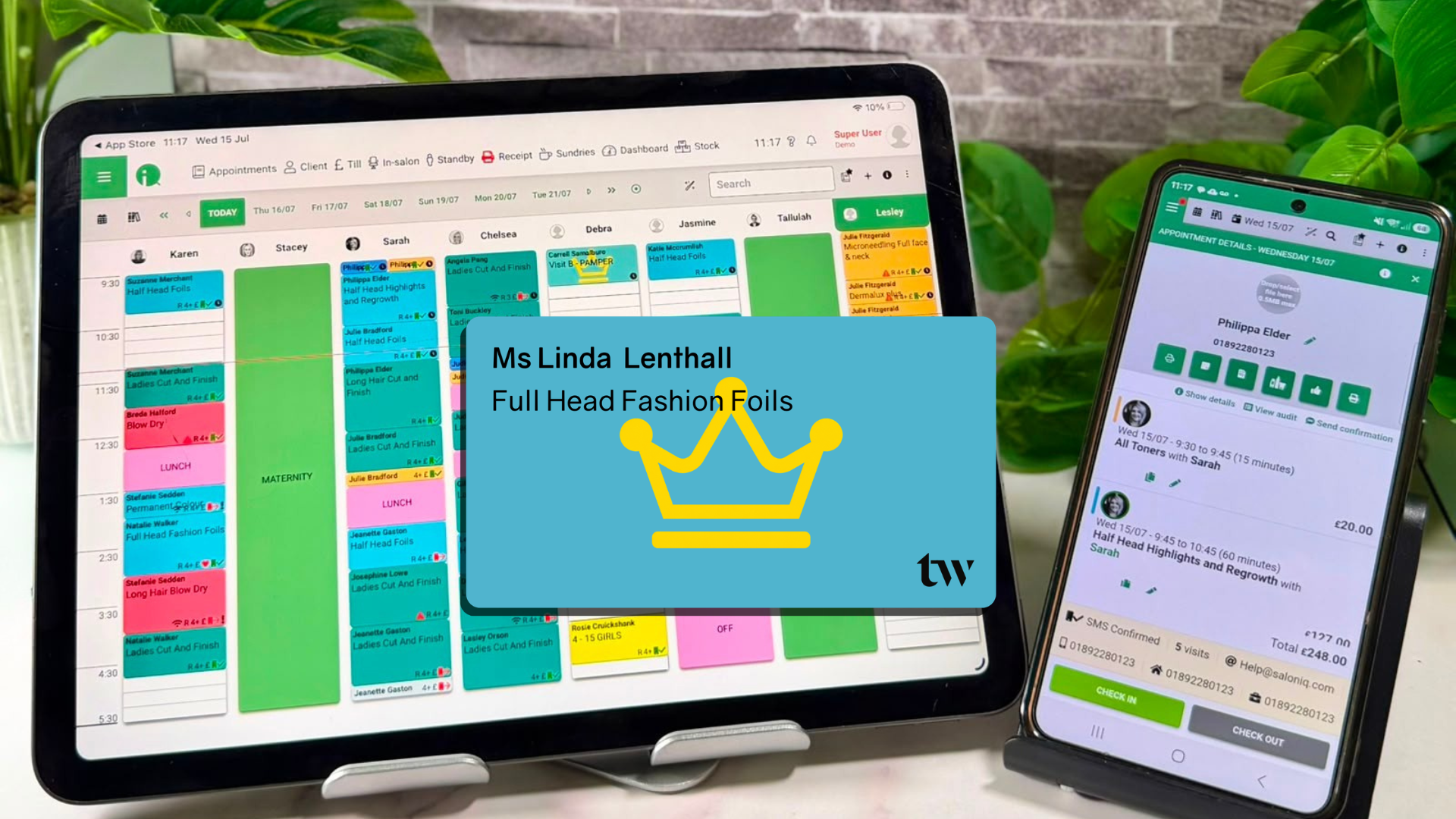
Treatwell bookings within SalonIQ
- How Often will Treatwell Invoice me for my bookings - Invoices will be the 1st and the 16th of each month. If either of these dates are at the weekend it will be the following Monday.
- Can I move a booking into another Team Members column - Yes
- Can I cancel or reschedule a booking. If the client has not paid in Treatwell you can cancel or reschedule the booking at anytime. If the client has pre paid on Treatwell the client will only be able to cancel their booking 48 hours prior to their appointment and an automatic refund will be issues to the client which can take up to 7 working days. If the client is within the 48 hours they will not be auto refunded and the monies remain in your stripe account to keep. If you do wish the client to be refunded then please call.......
- Can I move a booking so that it is a different time - Yes
- Can I add extra services onto a Treatwell booking - Yes
- What makes a popular service on Treatwell - Your popular services will be the top selling services over the last 30 days.
- How will Treatwell clients be able to leave me a review - Once the client has been checked out on SalonIQ, the client will receive an email to give you a review. Once completed this review will show on your Treatwell page.
- Can I reply to any reviews - Currently there is no option to reply to reviews.
- Payments - All clients will be given the option to either pay online or pay at the venue. Any service that is above £75 will auto ask the client to make a full payment. Payments go directly into your Treatwell stripe account and not your SalonIQ account.
- When will II receive my stripe payments - Stripe payments will appear on your Treatwell invoice on the 1st and 16th of the month.
- The client has paid in full and wants to amend their service. Please direct the client to their Treatwell account where they can amend their booking. Once this has been done your SalonIQ appointment page will be updated with the new service.