![SALONIQ_Logo-High-Res_darkbg (1) (1).png]](https://faq.saloniq.com/hs-fs/hubfs/SALONIQ_Logo-High-Res_darkbg%20(1)%20(1).png?width=141&height=79&name=SALONIQ_Logo-High-Res_darkbg%20(1)%20(1).png)
Main Menu > Dashboards > Stock Dashboard > Purchase Order
Create your purchase order as normal, either search or scan the products you wish to order and enter the quantity you wish to place.
Remember to complete:
- Due Date
- Quantity
- Adjust prices if required
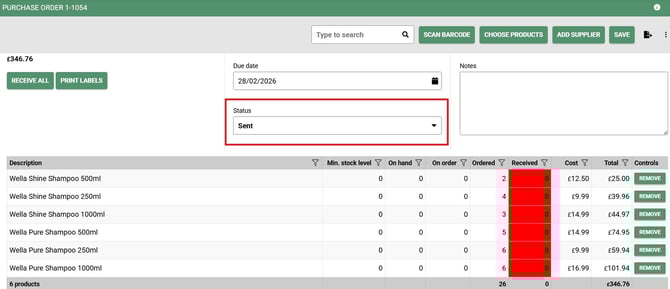
You must always change the status bar to "Sent" for the purchase order to be exported
Once complete, select "save" at the top right corner.
You can now click on to the available purchase orders and change the "sent" to view your Wella Purchase Order.

Click on the selected Purchase Order to view and open.
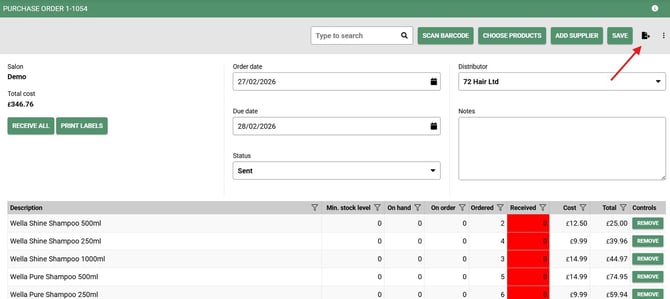
At the top right corner is an Export icon, click on this so the purchase order downloads into your download folder.
Select the SEND WELLA ORDER option.
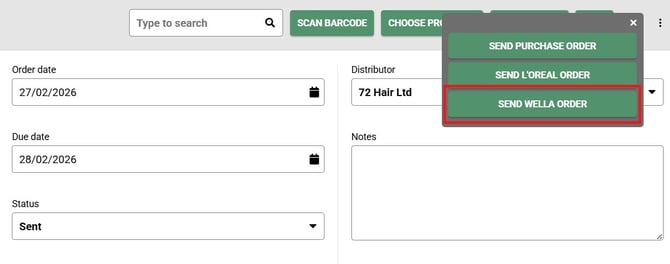
This file will be added to your download folder ready for you to save and export to Wella.
If you need any further help with your Wella Purchase Order download, please call us on 01892 280 123 or email help@saloniq.com